9.14.2014

UCS System Pre-Login Banner

Have you ever wanted to configure a pre-login banner for your UCS system?  I haven't, but for those of you that would like this added verbiage in your environment, here's how:
-Navigate within UCSM to the Admin tab -> User Services -> Banners tab.
-Click on the Create Pre-Login Banner Action, and enter a message in the pop-up box.  Only text is currently supported with this feature.

-The banner will appear for both GUI and CLI system-wide logins.


UCS Central Shared Secret... Shhh! It's a secret.

The UCS Central shared secret is used for authenticating a UCS domain with the Central server.  It is only needed for initial registration.  If you happen to change your shared secret, UCS domains that are already registered with UCS Central will not be affected.  If you need to reset the shared secret, the following procedure can be used:

central# connect local-mgmt
Cisco UCS Central
TAC support: http://www.cisco.com/tac
Copyright (c) 2011-2014, Cisco Systems, Inc. All rights reserved.
The copyrights to certain works contained in this software are
owned by other third parties and used and distributed under
license. Certain components of this software are licensed under
the GNU General Public License (GPL) version 2.0 or the GNU
Lesser General Public License (LGPL) Version 2.1. A copy of each
such license is available at
http://www.opensource.org/licenses/gpl-2.0.php and
http://www.opensource.org/licenses/lgpl-2.1.php

central(local-mgmt)# set shared-secret
Enter the Shared Secret  :
Confirm Shared Secret :
central(local-mgmt)#


**Note: The shared secret must contain characters from at least three of the following classes: lower case letters, upper case letters, digits and special characters.  It cannot be based off of a dictionary word.

9.12.2014

UCS Central Licensing

UCS Central licensing is based on the number of UCS domains that are registered with the server.  UCS Central comes by default with a 120 day grace period license, which can accommodate up to 5 UCS domains for free.  "If you register any domain after the fifth, you get a 120 grace period for each new registered domain."  Once the grace period ends for the domains, you will need an active domain license installed on the server in order to continue managing your UCS environments.  The grace period timer starts on the day you register a UCS domain.  The 120 grace period license days do not need to be used in succession (i.e. - You can register a UCS domain for 20 days, unregister it, and whenever you decide to register it again, it will pick up at the 20 day mark where it left off.)

Types of UCS Central licenses

Initial License: Includes the initial activation license for UCS Central and five domain licenses.  You cannot remove this license is installed on the system. (L-UCS-CTR-INI=)
Domain License: UCS domains that are registered with UCS Central beyond the initial five will each need to have a domain license purchased and installed.  **Domain licenses are domain specific.  Once license is allocated, it can only be used with that particular domain. (L-UCS-CTR-LIC=)

License Installation

In order to install a license in UCS Central, launch the web interface, navigate to Operations Managements -> License Management.  You will notice there is a specific GUID associated with each UCS Central installation (you will need this to obtain the initial license).  You can upload your license to the server by click the Download button within the license tab (it's not so obvious), and browse for the license file you want to install (local and remote options are available):


You can take a peek at the Download Tasks tab to monitor the status of the license file upload.  Licenses that are available for installation will be flagged as "Validated" in the Overall License Status column.  You can select which license you want to install, click Install.  Likewise if you want to delete a license from the system,  you can select it from the list of licenses and select Delete.  Make sure you unregister the UCS domain from UCS Central before deleting the license.  **Note: At present, this licensing structure applies to both UCS Classis and UCS Mini chassis.

UCS Central Password Reset ISO

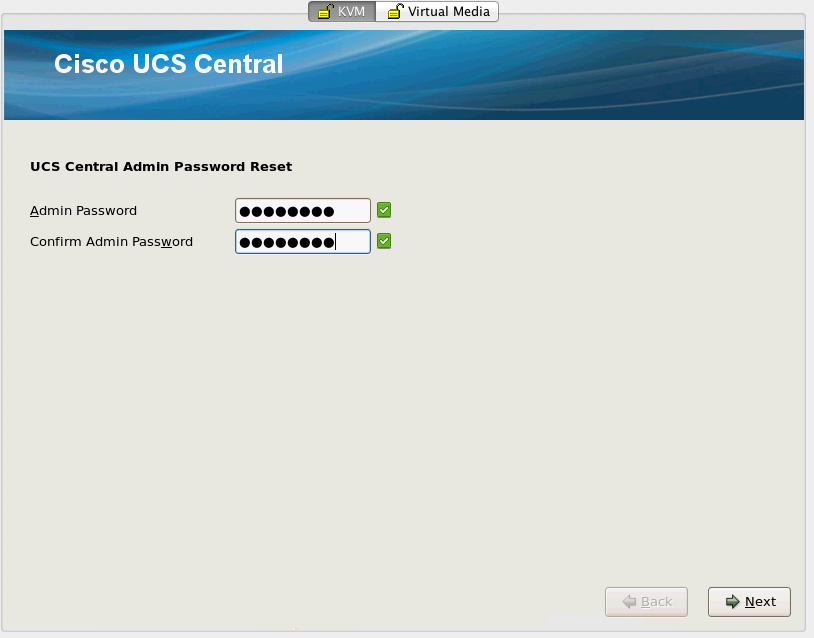
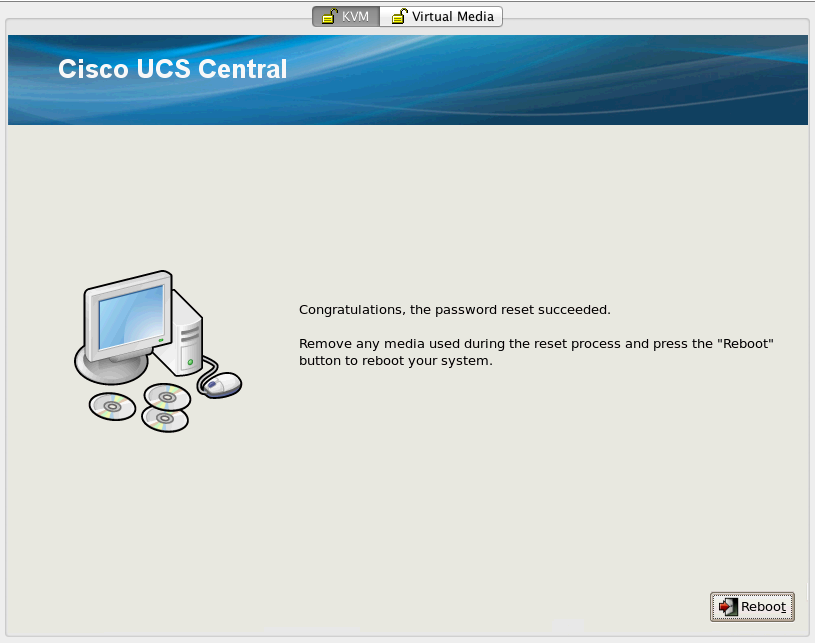
I know exactly what my admin password, but what if happen to forget it one day.  There is a Password Reset ISO that can be downloaded from cisco.com for this purpose.  Let's take a look at what happens when you boot to it.


*The only way I could get into this utility was pressing F6 to get to the boot menu and selecting my virtual DVD drive.  Working to see if there is something wrong with the .iso, or perhaps just my machine.

Once loaded, it is pretty straight forward:


UCS Central Upgrade: 1.2(1a)

After downloading the appropriate .iso file for your UCS Central upgrade (the most current version is 1.2(1a)), map it to your server, and reboot.


Some details you need to consider from the Upgrade Guide:
-You can only upgrade to 1.2(1a) from either 1.1(1b) or 1.1(2a)
--Clear the browser cache after logging into the UCS Central web interface
-You must upgrade from 1.1 to 1.2 versions in standalone mode (cluster mode can be enabled from the loca-mgmt CLI level)
-You can only use the ISO image upgrade (Provider Bundle is not longer in use)
-UCS Central 1.2 supports UCSM 2.1(x), 2.2(x) and 3.0.  Upgrade UCSM BEFORE UCS Central, or deal with mismatched version faults and missed updates on UCSM side
-Be aware that once you upgrade, you cannot downgrade :]


Source: http://www.cisco.com/c/en/us/td/docs/unified_computing/ucs/ucs-central/install-upgrade/1-2/b_UCSC_Install_and_Upgrade_Guide_1-2/b_UCSC_Install_and_Upgrade_Guide_1-2_chapter_0110.html#concept_B130CCED6E5F400A872CA19557D8A2CF

Again we are presented with the option to install or upgrade, as was seen in the Installation post.  This time we are going to elect to "Upgrade existing Cisco UCS Central".


Let's move on to configuring this bad boy...

UCS Central Installation: 1.1(2a)

Documenting the UCS Central installation of 1.1(2a) (so I can afterwards document the upgrade procedure to 1.2(1a)).  I elected to install UCS Central via the .iso onto a standalone rackmount server.  The installation guide suggests installing UCS Central on a VM, but I have a spare server that I can dedicate for this purpose.


Whoops... I had not logged into the server in some time, so ensure that you have the appropriate drive configuration set up.  Go ahead and take a look at the installation prerequisites before you begin:
http://www.cisco.com/c/en/us/td/docs/unified_computing/ucs/ucs-central/install-upgrade/1-1/b_UCSC_Installation_and_Upgrade_Guide_11/b_UCSC_Installation_and_Upgrade_Guide_11_chapter_010.html


Let's try this again.


Better. :]


...And that's pretty much it :]  You can check out the first boot up below:


I am going to setup a new standalone configuration as this is a new UCS Central server in my environment.  The installer walks you through some of your basic "new server" questions - IP, mask, gateway, hostname, DNS, passwords.  You can also elect to enable Statistics Collection.  According to the User Manual: "Cisco UCS Central collects and aggregates statistics data on Network, Temperature, Cooling and Power from the registered Cisco UCS domains."


Nonetheless, after you make it through the install, the UCS Central server reboots to apply the configuration that was specified.  You can then either log in from the CLI, or browse to the IP that was specified and check out the web interface (the login screen is very similar to the C-Series CIMC interface).


Before I do any further configuration/UCSM integration/posts on cool things you can do with UCS Central, I am going to document the upgrade procedure to 1.2(1a).


9.18.2013

VCE VBlock Visio Stencils

Looking for some way to showcase your VBlock in your existing Visio diagrams?  Look no further.  I have put together some stencils of VCE Vblock environments that you can simply import to Visio and drag into your existing network diagrams.

Here are some examples of what you will find:

VBlock100 BX-4P:


VBlock300 FX Base:


VBlock700:


VBlock 100: https://sites.google.com/site/vcevblockvisiostencils/VBlock100.vss?attredirects=0&d=1
VBlock 700MX: https://sites.google.com/site/vcevblockvisiostencils/VBlock700MX.vss?attredirects=0&d=1

**Note: I am trying to shrink down the size of the VBlock 300 files so that they can be posted within sizing limits.  Stay tuned.